⌘K
Help

Invite a staff member and set permissions

SOPGetting Started and Account AccessUpdated Jun 18, 2026

Invite a user from Staff and Permissions, scope them to one or more locations, and set them as an admin or a limited user.

Sign in to your clinic portal as an owner or admin.

Every staff member, clinical or not, signs a BAA agreement before they can view protected health information.
00
Open Staff and Permissions from the settings area.
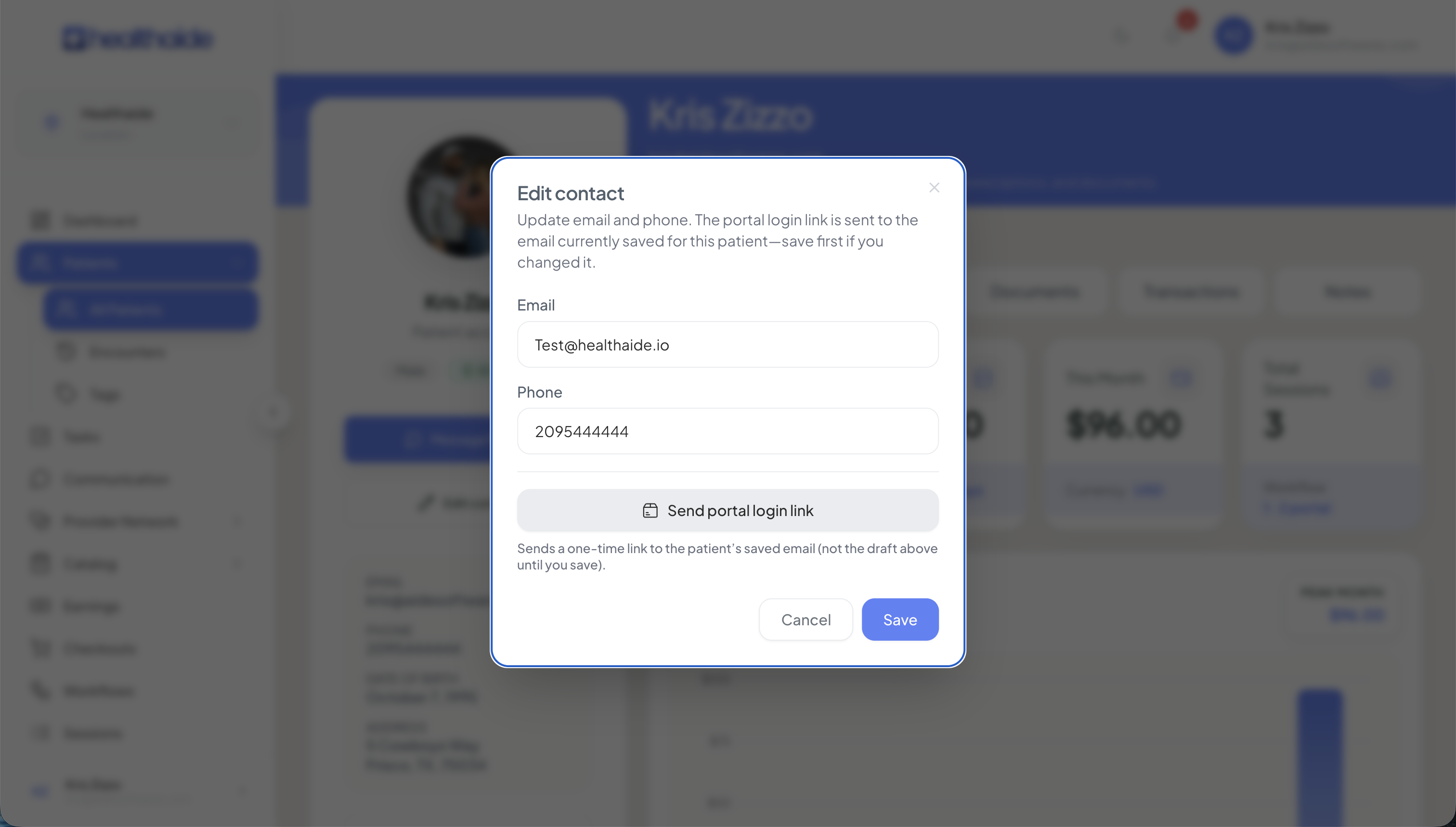
Edit contact modal showing Email and Phone fields with Send portal login link button — patient profile in background
00
Select invite a user and enter their email.
00
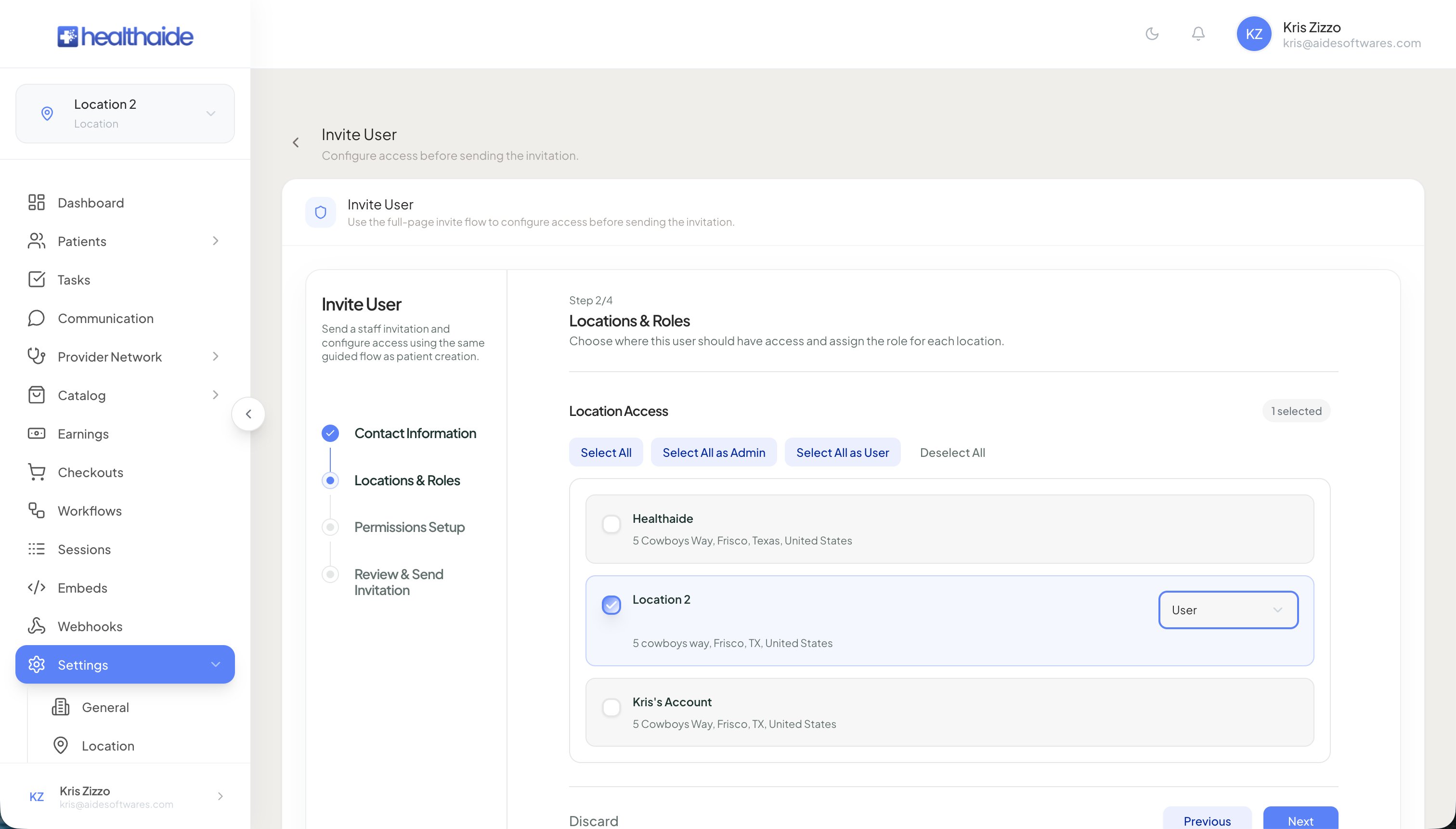
Choose the location or locations the user belongs to. If you select one only, they will not see data from your other locations.
Invite User Step 2 of 4 showing Locations and Roles with location checkboxes and role dropdowns
00
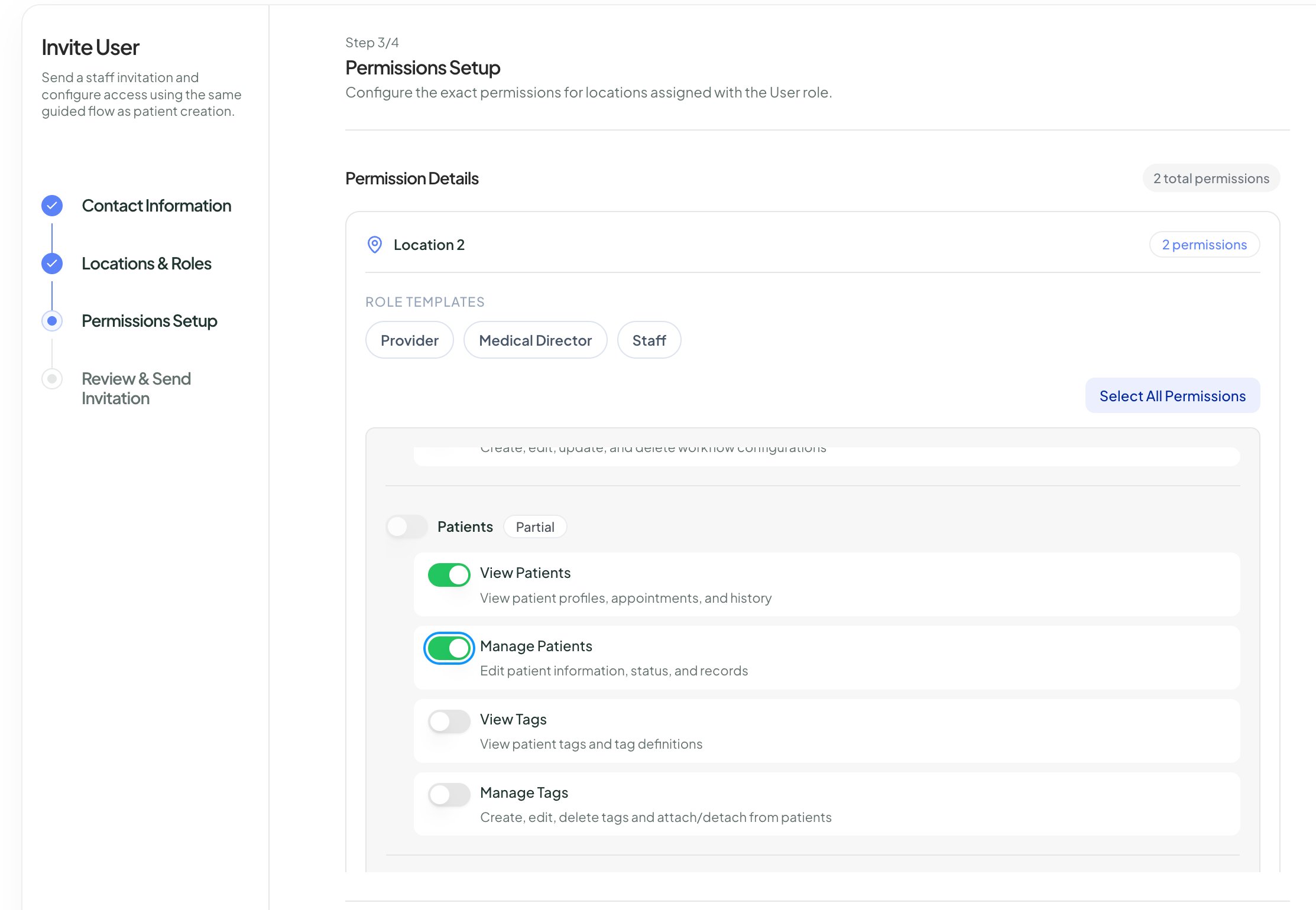
Set the role. An admin has full access. A user role can be limited feature by feature.
Invite User Step 3 of 4 Permissions Setup showing per-feature permission toggles for a User role
00
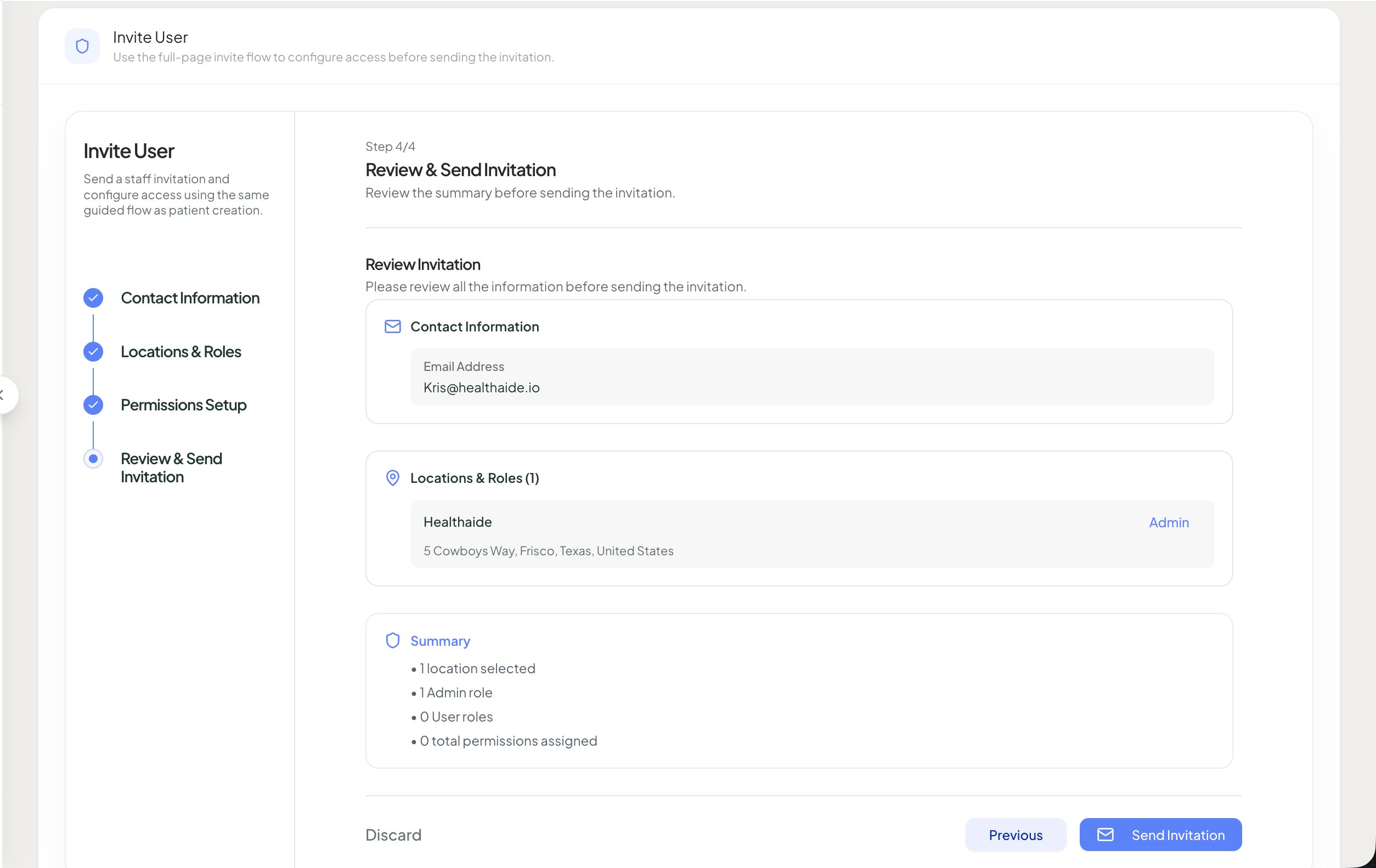
Review the summary and send the invite. The user appears in your pending list until they accept.
Invite User Step 4 of 4 Review and Send Invitation showing contact, locations and roles, and summary
00
The invited user must create an account before signing in, then verify their email and sign the BAA.

Note

An admin can manage permissions and remove other admins. Only the owner can transfer ownership.

Healthaide
Healthaide

Ask Healthaide

Knowledge base assistant

Healthaide

Hi, I am your Healthaide assistant.

You are reading "this article". Ask me about this article, or anything else about the platform.

AI generated, verify important detailsPowered by Healthaide AI