⌘K
Help

Override a medication name and edit its resources

SOPMedications and ProtocolsUpdated Jun 18, 2026

Rename a medication for your patients, update its description and image, and manage the resources patients see for it.

Sign in to your clinic portal as an owner or admin.

Resource editing is available at the clinic level. Brand and partner accounts that do not provide patient care cannot edit resources, which is a legal requirement.
00
Open the Products page and select the medication.
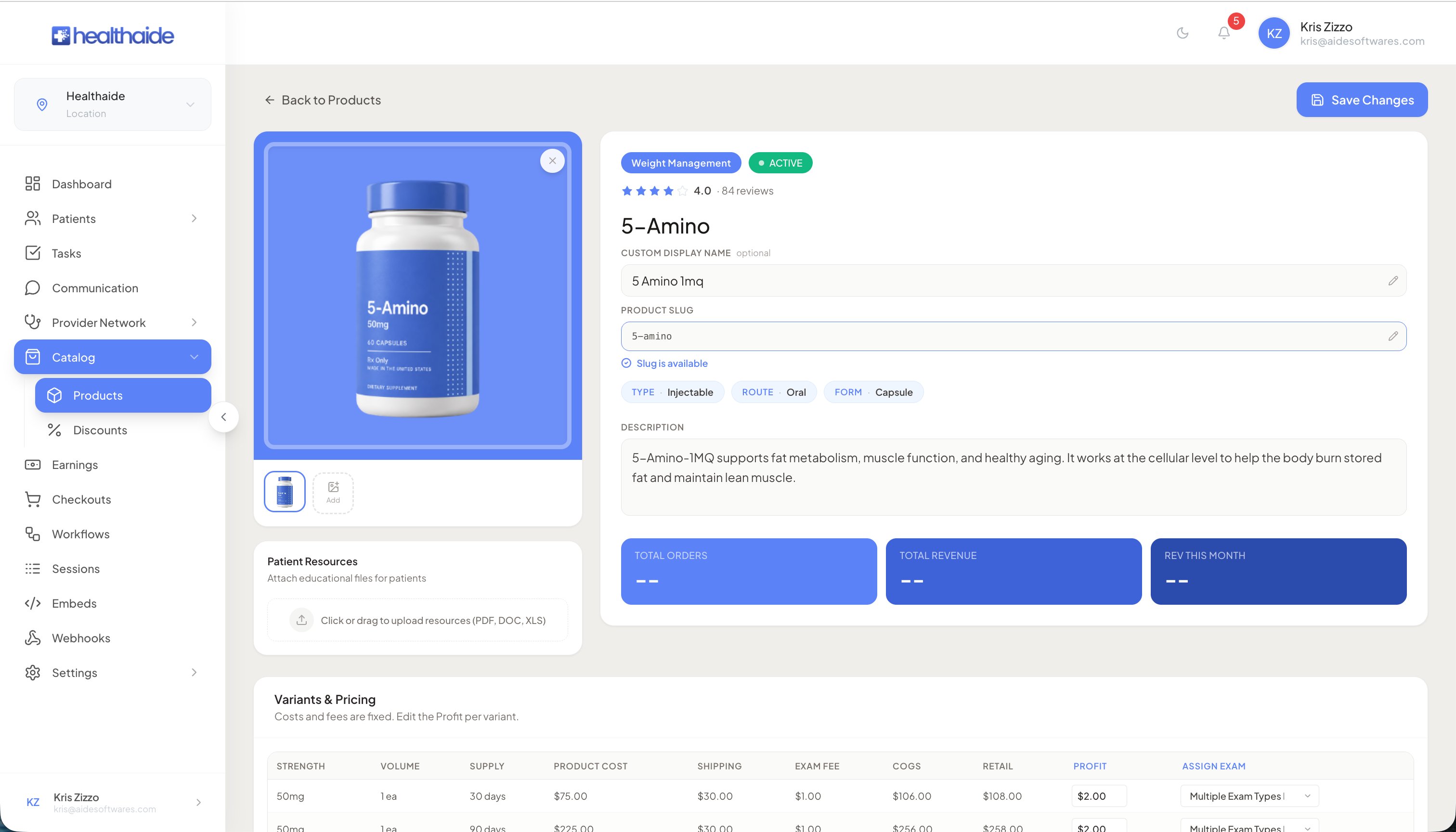
Product detail page for 5-Amino showing image, custom display name, slug, tags, description, and metric cards
00
To rename it as patients see it, edit the name field and save. The new name renders on the patient facing side.
Custom display name and product slug fields on the product detail page
00
To update the description, edit the description field and save.
00
To change the image, upload a new photo in the image field.
Product image upload area showing the primary product image and an Add button for additional images
00
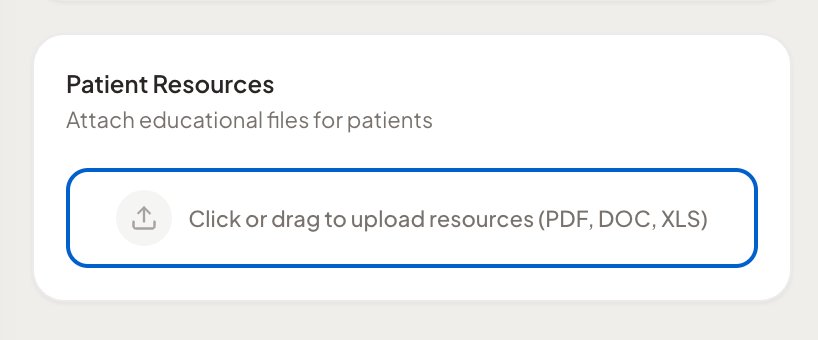
To review the patient resources scoped to this medication, open the resources section. These can include administration instructions and unbranded materials.
Patient Resources card with a drag-and-drop upload zone for PDF, DOC, and XLS files
00
If your account has resource editing enabled, add or override resources here. Patients see these under a resources button when the medication is prescribed.

Note

Resources are scoped to the medication. A patient prescribed this medication sees only the resources attached to it.

Healthaide
Healthaide

Ask Healthaide

Knowledge base assistant

Healthaide

Hi, I am your Healthaide assistant.

You are reading "this article". Ask me about this article, or anything else about the platform.

AI generated, verify important detailsPowered by Healthaide AI